

"Managing 30 servers? There's a better way than history | grep ssh"
Stop drowning in terminal windows. Organize your servers. Navigate with confidence.






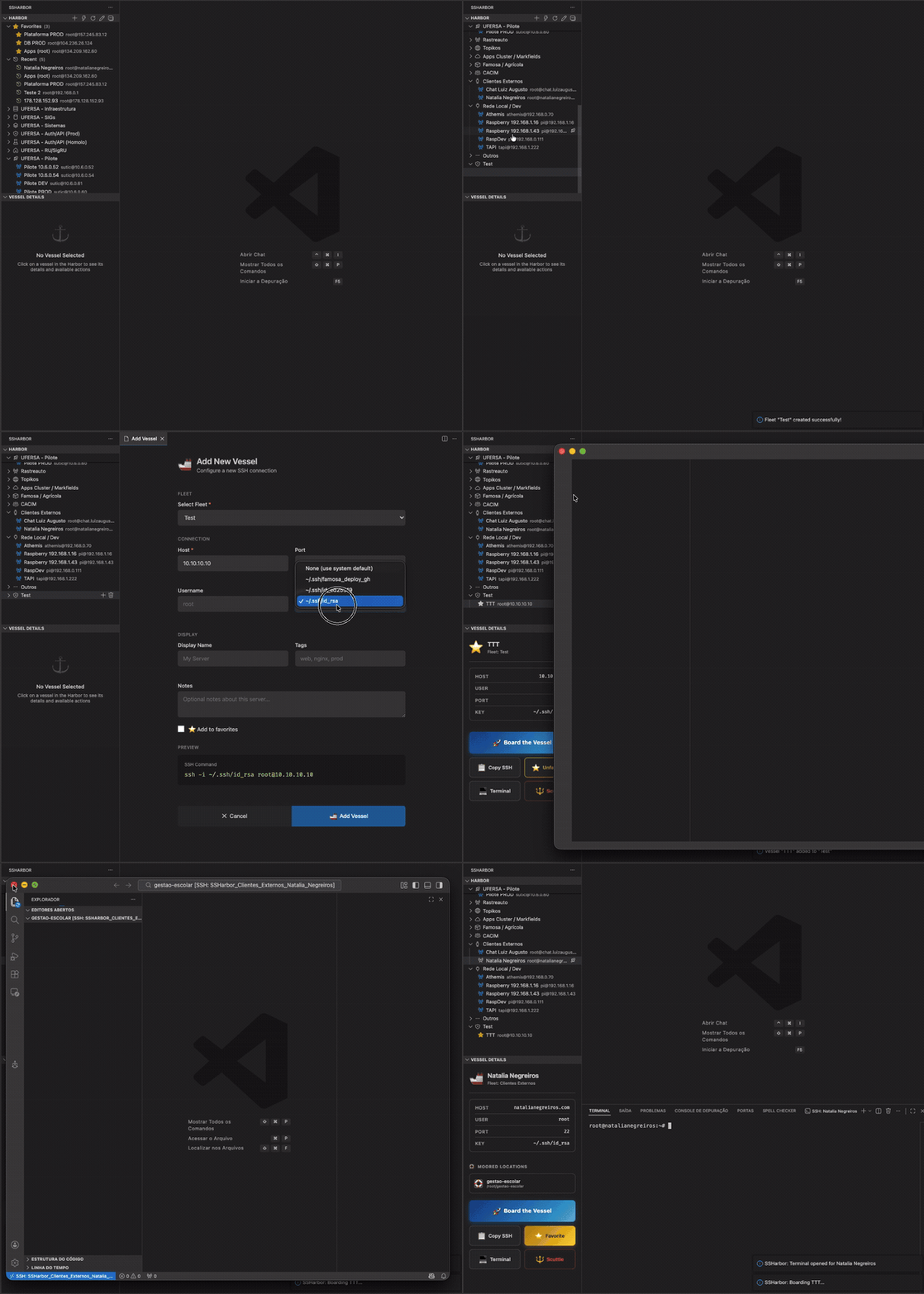
You're a developer. You have dozens of servers. Production, staging, dev boxes, client machines, personal projects...
Every time you need to connect:
- 🔍 "What was that IP again?"
- 🤔 "Which SSH key does this server use?"
- 😤 "Let me scroll through my bash history..."
- 🤯 "Was it port 22 or 2222?"
Sound familiar?
SSHarbor transforms chaos into clarity:
| Before SSHarbor | After SSHarbor |
|---|---|
ssh -i ~/.ssh/prod.pem -p 2222 deploy@10.0.0.1 |
One click |
| Memorizing 30+ server configs | Visual organization |
| Hunting through SSH config files | Instant search |
| Opening terminals everywhere | VS Code Remote SSH integration |
| 👨💻 DevOps Engineers | 🚀 Startup Founders | 🏢 Enterprise Teams |
|---|---|---|
| 50+ servers across AWS, GCP, Azure | Juggling prod, staging, and dev | Onboard new devs in minutes |
| 🎓 Students & Learners | 🔧 Freelancers | 🏠 Homelab Enthusiasts |
|---|---|---|
| Learning cloud computing | Different clients, different servers | Raspberry Pi fleet |
Group servers into logical Fleets — Production, Staging, Personal, Client-A, whatever makes sense for your workflow.
📦 Production
   └── 🚢 Web Server
   └── 🚢 Database
   └── 🚢 Redis Cache

📦 Development
   └── 🚢 Dev Box
   └── 🚢 Test Server

📦 Personal
   └── 🚢 Home Lab
   └── 🚢 Raspberry Pi
⌘ + ⇧ + S — and you're in.
Search across all your vessels, or type a quick connection string. No more terminal archaeology.
Click Board the Vessel and SSHarbor opens a new VS Code window connected to your server via Remote SSH. Full IDE experience. No terminal juggling.
SSHarbor remembers the folders you work in. Next time you connect, pick your project folder instantly — no navigation required.
Star your most-used servers. They float to the top, always within reach.
Configure SSH keys per-fleet or per-vessel. SSHarbor handles the complexity:
{
  "defaults": { "identityFile": "~/.ssh/id_rsa" },
  "fleets": [{
    "name": "AWS Production",
    "defaults": { "identityFile": "~/.ssh/aws-prod.pem" }
  }]
}Select any vessel to see:
- Connection details at a glance
- SSH command preview
- Quick action buttons
- Saved folders for instant access
Right-click → Copy SSH Command → Paste anywhere. Perfect for sharing with teammates or documentation.
| Alternative | The Reality | SSHarbor Advantage |
|---|---|---|
| SSH Config | Great for 5 servers. Chaos at 50. | Visual organization + search |
| Shell Aliases | alias prod="ssh -i ~/.ssh..." scattered everywhere |
Centralized, portable config |
| Notes App | Copy-paste archaeology | One-click connection |
| Memory | "Was it .pem or .pub?" |
Never forget again |
| Terminal Tabs | 20 tabs, which one is prod? | Named, organized, searchable |
Open VS Code → Extensions → Search "SSHarbor" → Install
Or via command line:
code --install-extension marcostullyo.ssharborClick the + button in the SSHarbor panel, or run:
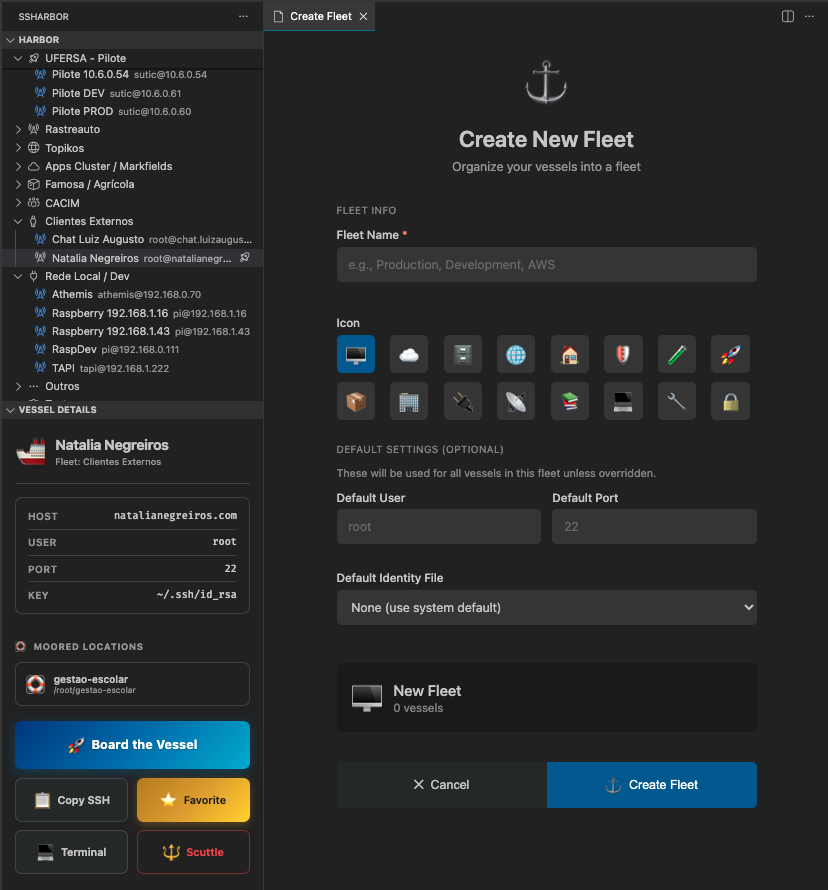
⌘ + ⇧ + P → SSHarbor: Create Fleet
Right-click your fleet → Commission New Vessel
Enter host, user, port — done.
Click on any vessel → Board the Vessel 🚀
SSHarbor stores configuration in VS Code's global storage. Edit via the ⚙️ icon or:
⌘ + ⇧ + P → SSHarbor: Edit Configuration
{
  "$schema": "./schema.json",
  "defaults": {
    "user": "root",
    "port": 22,
    "identityFile": "~/.ssh/id_rsa"
  },
  "fleets": [
    {
      "name": "Production",
      "icon": "cloud",
      "defaults": {
        "user": "deploy",
        "identityFile": "~/.ssh/prod.pem"
      },
      "vessels": [
        {
          "name": "Web Server",
          "host": "web.example.com",
          "tags": ["nginx", "frontend"],
          "favorite": true
        },
        {
          "name": "Database",
          "host": "db.example.com",
          "port": 5432,
          "tags": ["postgres"]
        }
      ]
    },
    {
      "name": "Development",
      "icon": "beaker",
      "vessels": [
        {
          "name": "Dev Box",
          "host": "192.168.1.100",
          "user": "developer",
          "notes": "Local development machine"
        }
      ]
    }
  ]
}Global Defaults
| Option | Type | Default | Description |
|---|---|---|---|
user |
string | root |
Default SSH username |
port |
number | 22 |
Default SSH port |
shell |
string | /bin/zsh |
Shell after connection |
identityFile |
string | — | Default SSH key path |
Fleet Options
| Option | Type | Description |
|---|---|---|
name |
string | Fleet display name |
icon |
string | VS Code ThemeIcon name |
collapsed |
boolean | Start collapsed in tree |
defaults |
object | Override global defaults |
vessels |
array | List of vessels |
Vessel Options
| Option | Type | Description |
|---|---|---|
name |
string | Display name |
host |
string | Required. Hostname or IP |
user |
string | SSH username |
port |
number | SSH port |
identityFile |
string | SSH key path |
tags |
array | Tags for organization |
favorite |
boolean | Pin to top |
notes |
string | Personal notes |
| Shortcut | Action |
|---|---|
| ⌘ + ⇧ + S | Quick Connect |
| Command | Description |
|---|---|
SSHarbor: Quick Connect |
Fast connection dialog |
SSHarbor: Create Fleet |
Create a new fleet |
SSHarbor: Commission New Vessel |
Add server to fleet |
SSHarbor: Board the Vessel |
Connect via Remote SSH |
SSHarbor: Open SSH Terminal |
Classic terminal connection |
SSHarbor: Copy SSH Command |
Copy connection command |
SSHarbor: Edit Configuration |
Open config file |
SSHarbor: Reconnect to Last |
Quick reconnect |
- Fleet organization
- Quick Connect (
Cmd+Shift+S) - VS Code Remote SSH integration
- Favorites & tags
- Quick access folders
- 🔜 Import from
~/.ssh/config - 🔜 Team sharing (JSON export/import)
- 🔜 Connection health monitoring
- 💭 Multi-hop (Jump Host) support
- 💭 SFTP browser integration
"Finally, a sane way to manage my AWS fleet" — DevOps Engineer
"Onboarding new team members went from hours to minutes" — Tech Lead
"My terminal history thanks you" — Full Stack Developer
"The nautical theme is surprisingly intuitive" — Homelab Enthusiast
- Use fleet defaults — Set user/key once per fleet, not per vessel
- Tag everything — Makes searching lightning fast
- Star your top 5 — Favorites always float to the top
- Save folders — SSHarbor remembers where you work
🔴 Connection refused / Remote SSH not working
Ensure the Remote-SSH extension is installed:
code --install-extension ms-vscode-remote.remote-ssh🔴 SSH key not found
Use absolute paths instead of ~:
❌ ~/.ssh/key.pem
✅ /Users/yourname/.ssh/key.pem
🔴 Permission denied (publickey)
- Check the key file permissions:
chmod 600 ~/.ssh/your-key.pem - Verify the correct username for your server
- Ensure the key is added to the server's
authorized_keys
🔴 Config file not loading
Run SSHarbor: Edit Configuration from the command palette to ensure the file exists and is valid JSON.
Found a bug? Have a feature idea?
- Open an issue
- Fork & submit a PR
- Star the repo ⭐
MIT — Use it, modify it, ship it.

⚓ Made with love for developers who live in the terminal
🌟 If SSHarbor saved you time, consider starring the repo!
Built by Marcos Tullyo @ Markfields Solutions